
Load Balancing with SSL using Nginx

Introduction
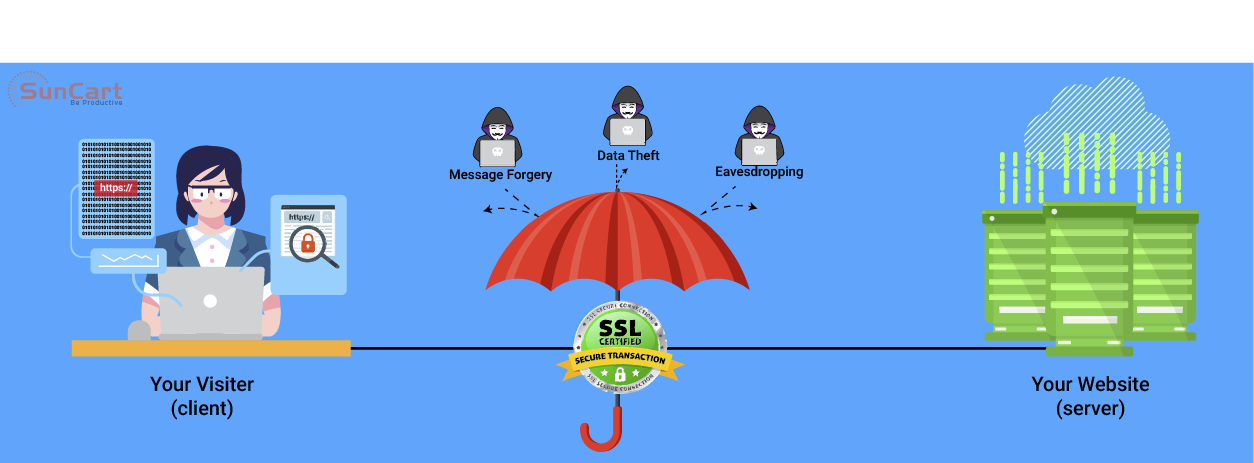
This tutorial shows you how to set up Nginx with load balancing and SSL with just one SSL certificate on the load balancer. This will reduce your SSL overhead, since the SSL updates, keys and certificates can be managed from the load balancer itself.
What is SSL Load Balancing
From the Nginx website
An SSL load balancer is a load balancer that also performs encryption and decryption of data transported via HTTPS, which uses the Secure Sockets Layer (SSL) protocol (or its successor, the Transport Layer Security [TLS] protocol) to secure HTTP data as it crosses the network. The load balancer intercepts incoming client requests and distributes them across a group of backend servers, which increases website performance, reliability, and scalability.
Simply put the load balancer is the point of entry from the internet which contains the ssl cert, when traffic hits the load balancer the encryption starts there for the web browser, the traffic between the load balancer and app servers are still unencrypted, but the data returned is encrypted on the way out of the load balancer to the web browser, this is sometimes called SSL Termination or SSL Offloading
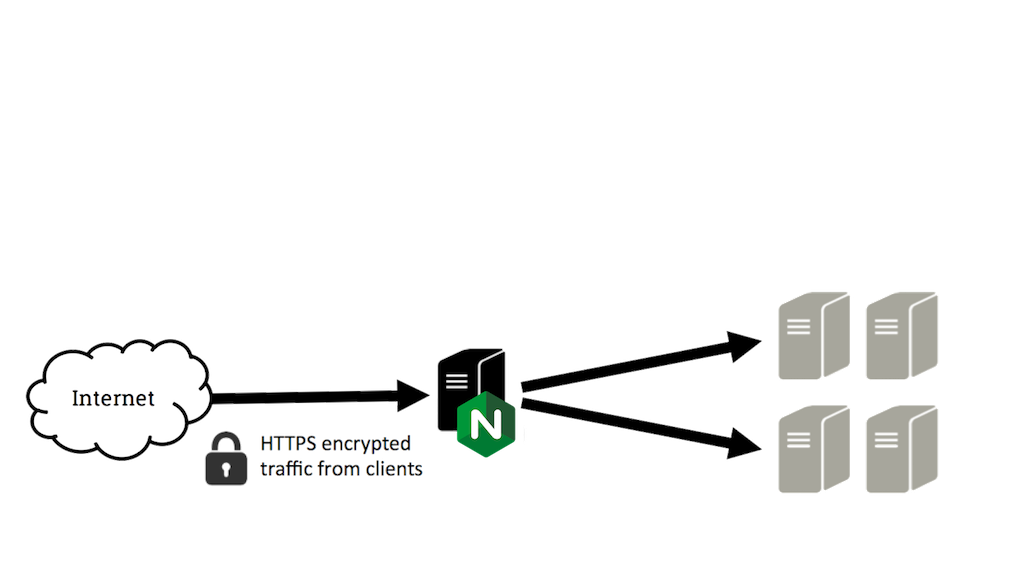
SSL termination is the process that occurs on the load balancer which handles the SSL encryption/decryption so that traffic between the load balancer and backend servers is in HTTP. the backend must stay secured with no access outside of the private network or load balancer IP
Prerequisites
In this tutorial the commands must be run as the root user or as a user with sudo privileges.
A LAMP server is not required, but we’ll be using it as an example in this tutorial.
Setup
This tutorial makes use of the following 3 OCI Servers
Server 1 (Frontend)
- Image: Oracle Linux 7
- Hostname: loadbalancer
- Private IP: 10.0.3.3
Server 2 (Backend)
- Image: Oracle Linux 7
- Hostname: apps1
- Private IP: 10.0.3.11
Server 3 (Backend)
- Image: Oracle Linux 7
- Hostname: apps2
- Private IP: 10.0.3.22
Domain name - myexample.com
Update and upgrade the software on all three servers:
yum -y update
Reboot each server to apply the upgrades. This is important, since OpenSSL needs to be on its latest version to be secure.
We will be setting up a new Nginx virtual host for the domain name with the upstream module load balancing the backends.
Prior to setting up Nginx load balancing, you should have Nginx installed on your VPS. You can install it quickly with yum
yum -y install epel-release
yum -y install nginx
On the two backend servers, we are going to use Apache (anything that supports http request will work) update your repositories and install Apache
yum -y update
yum -y install httpd
Install PHP on both backend servers, this will be used later for testing
yum -y install php mod-php php-mcryptGenerate Keys And Create An SSL Certificate
In this section, you will run through the steps needed to create an SSL certificate.
Create the SSL certificate directory and switch to it.
mkdir -p /etc/nginx/ssl/myexample.com
cd /etc/nginx/ssl/myexample.com
Create a private key:
openssl genrsa -des3 -out server.key 2048Remove its passphrase:
openssl rsa -in server.key -out server.keyCreate a CSR (Certificate Signing Request):
openssl req -new -key server.key -out server.csrUse this CSR to obtain a valid certificate from a certificate authority or generate a self-signed certificate with the following command.
openssl x509 -req -days 365 -in server.csr -signkey server.key -out server.crtOnce this is done this directory will contain the following files:
- server.key - The private key
- ca-certs.pem - A collection of your CA’s root and intermediate certificates. Only present if you obtained a valid certificate from a CA.
- server.crt - The SSL certificate for your domain name
Virtual Host File And Upstream Module
Create a virtual hosts file inside the Nginx directory
vim /etc/nginx/sites-available/myexample.comAdd the upstream module containing the private IP addresses of the backend servers
upstream mywebapps {
    server 10.0.3.11;
    server 10.0.3.22;
}
Begin the server block after this line. This block contains the domain name, references to the upstream servers, and headers that should be passed to the backend.
server {
    listen 80;
    server_name example.com www.example.com; <--- After this line

    location / {
        proxy_pass http://mywebapps;
        proxy_set_header Host $host;
        proxy_set_header X-Real-IP $remote_addr;
        proxy_set_header X-Forwarded-For $proxy_add_x_forwarded_for;
        proxy_set_header X-Forwarded-Proto $scheme;
    }
}
The proxy_set_header directive is used to pass vital information about the request to the upstream servers.
Save this file and create a symbolic link to the sites-enabled directory.
ln -s /etc/nginx/sites-available/myexample.com /etc/nginx/sites-enabled/myexample.comPerform a configuration test to check for errors.
nginx -tIf no errors are displayed, reload the nginx service.
service nginx reloadLoad balancing has now been configured for HTTP.
Enable SSL
Add the following directives to the virtual hosts file (/etc/nginx/sites-available/myexample.com) inside the server {} block. These lines will be shown below.
listen 443 ssl;
ssl on;
ssl_certificate         /etc/nginx/ssl/example.com/server.crt;
ssl_certificate_key     /etc/nginx/ssl/example.com/server.key;
ssl_trusted_certificate /etc/nginx/ssl/example.com/ca-certs.pem;
Ignore the ssl_trusted_certificate directive if you are using self-signed certificates. Now the serverblock should look like this:
server {
    listen 80;
    listen 443 ssl;
    server_name example.com www.example.com;

    ssl on;
    ssl_certificate         /etc/nginx/ssl/example.com/server.crt;
    ssl_certificate_key     /etc/nginx/ssl/example.com/server.key;
    ssl_trusted_certificate /etc/nginx/ssl/example.com/ca-certs.pem;

    location / {
        proxy_pass http://mywebapp1;
        proxy_set_header Host $host;
        proxy_set_header X-Real-IP $remote_addr;
        proxy_set_header X-Forwarded-For $proxy_add_x_forwarded_for;
        proxy_set_header X-Forwarded-Proto $scheme;
    }
}
Check for configuration errors and reload the Nginx service.
service nginx configtest && service nginx reload
Securing The Backend Servers
Currently, the website hosted on the backend servers can be directly accessed by anyone who knows its public IP address. This can be prevented by configuring the web servers on the backends to listen only on the private interface. The steps to do this in Apache are as follows.
Edit the ports.conf file.
nano /etc/apache2/ports.conf
Find the following line:
Listen 80
Replace it with the backend server’s own private IP address:
Listen 10.130.227.22:80
Do this on all the backend servers and restart Apache.
service apache2 restart
The next step is to restrict HTTP access to the load balancer’s private IP. The following firewall rule achieves this.
iptables -I INPUT -m state --state NEW -p tcp --dport 80 ! -s 10.130.227.33 -j DROP
Replace the example with the load balancer’s private IP address and execute this rule on all the backend servers.
Testing The Setup
Create a PHP file on all the backend servers (web1 and web2 in this example). This is for testing and can be removed once the setup is complete.
nano /var/www/html/test.php
It should print the accessed domain name, the IP address of the server, the user’s IP address, and the accessed port.
<?php
    header( 'Content-Type: text/plain' );
    echo 'Host: ' . $_SERVER['HTTP_HOST'] . "\n";
    echo 'Remote Address: ' . $_SERVER['REMOTE_ADDR'] . "\n";
    echo 'X-Forwarded-For: ' . $_SERVER['HTTP_X_FORWARDED_FOR'] . "\n";
    echo 'X-Forwarded-Proto: ' . $_SERVER['HTTP_X_FORWARDED_PROTO'] . "\n";
    echo 'Server Address: ' . $_SERVER['SERVER_ADDR'] . "\n";
    echo 'Server Port: ' . $_SERVER['SERVER_PORT'] . "\n\n";
?>
Access this file several times with your browser or using curl. Use curl -k on self-signed certificate setups to make curl ignore SSL errors.
curl https://example.com/test.php https://example.com/test.php https://example.com/test.php
The output will be similar to the following.
   Host: example.com
   Remote Address: 10.130.245.116
   X-Forwarded-For: 117.193.105.174
   X-Forwarded-Proto: https
   Server Address: 10.130.227.11
   Server Port: 80

   Host: example.com
   Remote Address: 10.130.245.116
   X-Forwarded-For: 117.193.105.174
   X-Forwarded-Proto: https
   Server Address: 10.130.227.22
   Server Port: 80

   Host: example.com
   Remote Address: 10.130.245.116
   X-Forwarded-For: 117.193.105.174
   X-Forwarded-Proto: https
   Server Address: 10.130.227.11
   Server Port: 80
Note that the Server Address changes on each request, indicating that a different server is responding to each request.
Hardening SSL Configuration
This section explains configuring SSL according to best practices to eliminate vulnerabilities with older ciphers and protocols. Individual lines are shown in this section and the complete configuration file is shown in the last section of this tutorial.
Enabling SSL session cache improves the performance of HTTPS websites. The following directives must be placed after ssl_trusted_certificate. They enable shared caching of size 20MB with a cache lifetime of 10 minutes.
ssl_session_cache shared:SSL:20m;
ssl_session_timeout 10m;
Specify the protocols and ciphers to be used in the SSL connection. Here we have omitted SSLv2 and disabled insecure ciphers like MD5 and DSS.
ssl_prefer_server_ciphers       on;
ssl_protocols                   TLSv1 TLSv1.1 TLSv1.2;
ssl_ciphers                     ECDH+AESGCM:DH+AESGCM:ECDH+AES256:DH+AES256:ECDH+AES128:DH+AES:ECDH+3DES:DH+3DES:RSA+AESGCM:RSA+AES:RSA+3DES:!aNULL:!MD5:!DSS;
Strict Transport Security instructs all supporting web browsers to use only HTTPS. Enable it with the add_header directive.
add_header Strict-Transport-Security "max-age=31536000";
Check for configuration errors and reload the Nginx service.
service nginx configtest && service nginx reload
Complete Configuration
After configuring and hardening SSL termination, the complete configuration file will look like this:
/etc/nginx/sites-available/example.com
upstream mywebapp1 {
    server 10.130.227.11;
    server 10.130.227.22;
}

server {
    listen 80;
    listen 443 ssl;
    server_name example.com www.emxaple.com;

    ssl on;
    ssl_certificate         /etc/nginx/ssl/example.com/server.crt;
    ssl_certificate_key     /etc/nginx/ssl/example.com/server.key;
    ssl_trusted_certificate /etc/nginx/ssl/example.com/ca-certs.pem;

    ssl_session_cache shared:SSL:20m;
    ssl_session_timeout 10m;

    ssl_prefer_server_ciphers       on;
    ssl_protocols                   TLSv1 TLSv1.1 TLSv1.2;
    ssl_ciphers                     ECDH+AESGCM:DH+AESGCM:ECDH+AES256:DH+AES256:ECDH+AES128:DH+AES:ECDH+3DES:DH+3DES:RSA+AESGCM:RSA+AES:RSA+3DES:!aNULL:!MD5:!DSS;

    add_header Strict-Transport-Security "max-age=31536000";

    location / {
        proxy_pass http://mywebapp1;
        proxy_set_header Host $host;
        proxy_set_header X-Real-IP $remote_addr;
        proxy_set_header X-Forwarded-For $proxy_add_x_forwarded_for;
        proxy_set_header X-Forwarded-Proto $scheme;
    }
}
Do a SSL Server Test and this setup should get an A+ grade. Run the curl test again to check if everything is working properly.
curl https://example.com/test.php https://example.com/test.php https://example.com/test.php


Comments